admin
admin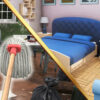
Home Design 3D is a room-design simulation focused on tidying and decorating an indoor space. Clear clutter, paint the room’s surfaces, and arrange furniture to create a layout that suits your design preferences. You can also change individual items’ dimensions, color, placement, and position on a wall, making it possible to refine the room piece by piece.
How Home Design 3D works
The experience centers on making visual changes to a room. Start by removing clutter so the space is easier to assess. Then apply paint to the surfaces and begin arranging furnishings. Taking these steps in order can make it simpler to see how each change affects the overall layout.
Furniture can be adjusted rather than left in its original state. Change an item’s size, hue, location, or position on the wall to better fit the space. When deciding where to place furnishings, consider how much room each item occupies and whether the arrangement leaves the rest of the room usable. Small adjustments can help you compare different layouts without changing every element at once.
Room design and editing tips
- Clear the clutter first: An uncluttered room gives you a better view of the surfaces and available space before you add or reposition furnishings.
- Paint before finalizing the layout: Applying paint early can help you judge the room’s appearance as you arrange its contents.
- Adjust furniture gradually: Try changing one item’s dimensions or placement at a time. This makes it easier to identify which edit improves the arrangement.
- Review wall placement: When positioning an item on a wall, check that its location works with the rest of the room’s design.
- Use undo and redo: These features let you reverse a change or restore an edit, so you can experiment without having to keep every adjustment.
Controls for Home Design 3D
On PC, use the WASD keys or the arrow keys to navigate. Click to interact with an item or engage with the design. On mobile, tap and swipe to move around, then tap to interact. If navigation feels unfamiliar, try each control method briefly before making detailed edits.
Making changes with confidence
The undo and redo options are useful throughout the design process. If a paint choice, furniture size, or placement does not work as expected, undo the change and try another approach. Redo can restore an edit if you decide the earlier version was preferable. Using these options as you work helps you test ideas while keeping control of the room’s appearance.
Overall, Home Design 3D offers a straightforward way to tidy and customize a room through painting, furniture arrangement, and item adjustments. Clear the space, make design changes in manageable steps, and use undo or redo whenever you want to compare alternatives.